

 ARTS & SCIENCES COMPUTING
New versions of macOS come out every year around October, leaving some asking when and how often to upgrade their computers. SAS Computings' recomendation is to wait at least a few months after a new release until we approve of its use with our systems and software. There are minimum versions required to meet university security policy, as only the 3 current versions of macOS are supported by Apple at any time, so upgrading is still a necessary process. To see Penn's currently supported software, please click here.
Table of Contents
- How to upgrade using Softwareupdate
- How to fix software update never stops checking or does not show upgrade
- When to upgrade
- FAQ
Upgrade using Software Update
To upgrade your macOS, please follow these instructions:
- Click the Apple in the top left, then System Settings
- Click General, then Software Update
- Along the top of the window it should mention macOS Tahoe, click Upgrade Now
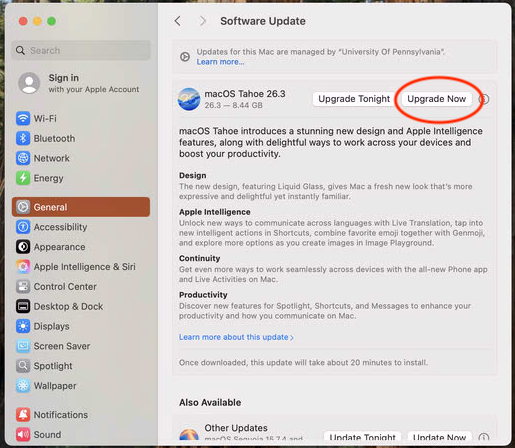
- Your computer will start to download the upgrade. You can use the machine during this process
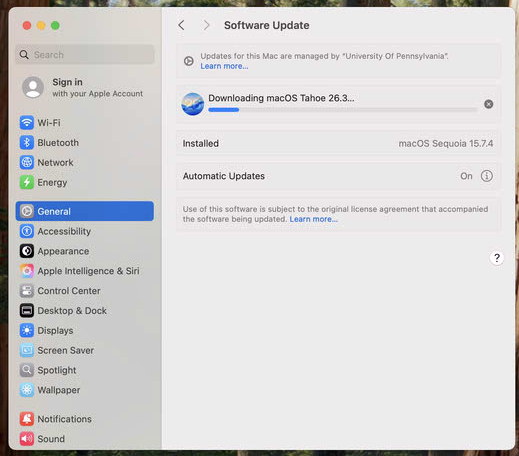
- When the download is done the update will install automatically. This will usually take around 20-30 minutes and the computer is usable during this time
- Once the installation is done, the app will open saying you have 60 seconds until the computer reboots. Save any open work and restart the computer, which will work on completing the update. This will take another 20-30 minutes where the computer is unusable
- The computer will restart and show the log-in window once the upgrade is done. Some more updates may be needed as macOS often does not upgrade to the current version. You'll need to do more updates through System Settings, General, Software update, or using the Nudge notification. Click here for instructions on using Nudge.
Please note: the first time you log into your machines post upgrade it will take a bit longer as the system is indexing files and optimizing the computer.
How to fix software update never stops checking or doesn't show upgrade
Sometimes Software Update gets stuck in an incorrect state. This can be fixed through the BigFix SSA!
- Click the BigFix SSA
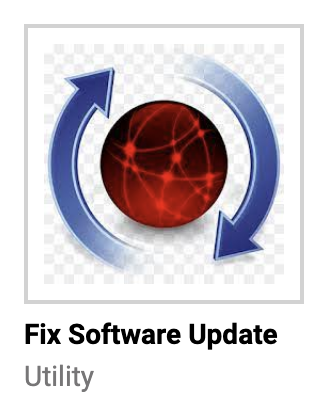
- Find Fix Software Update
- Click Get
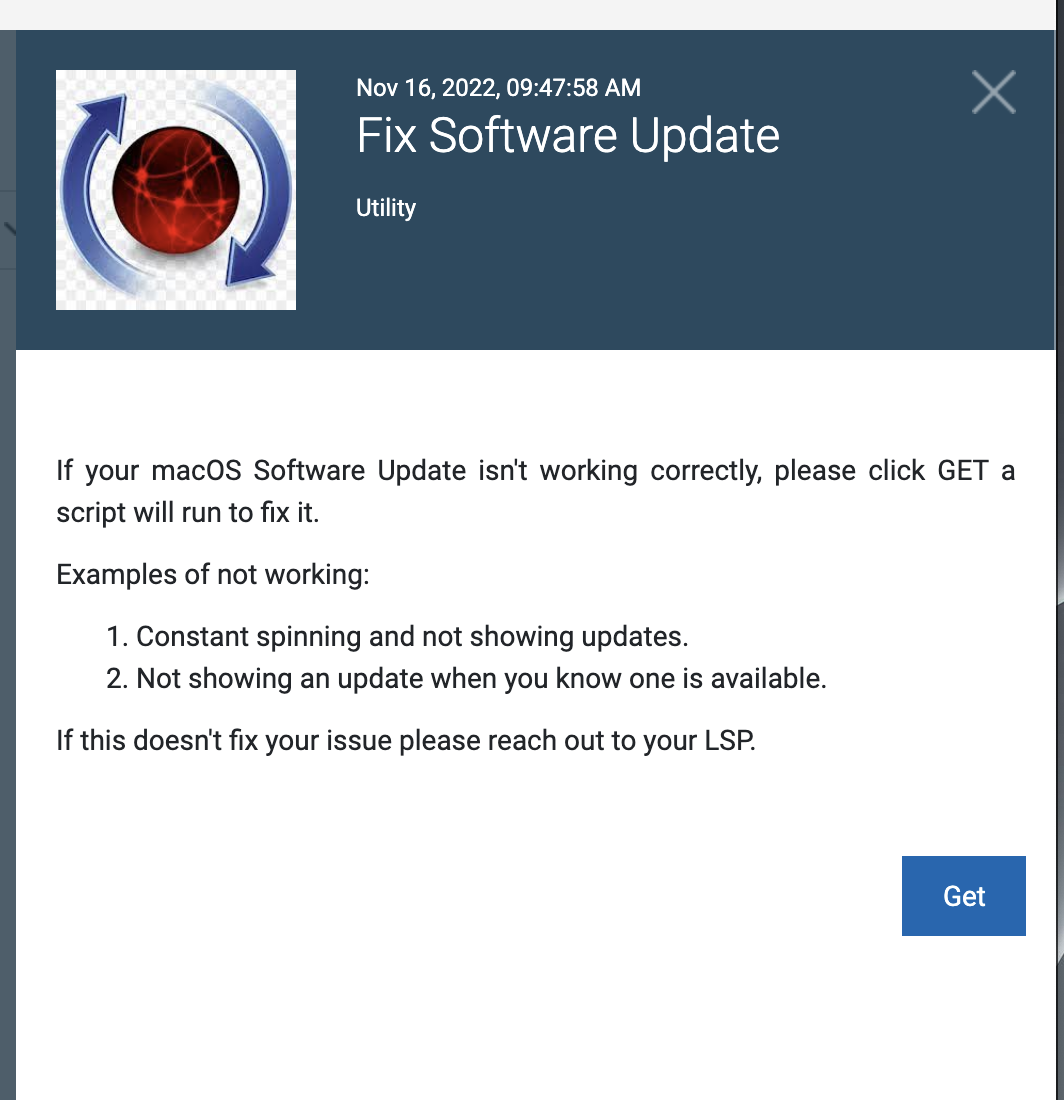
- Once Fix Software Update shows as completed, System Settings and Software Update should open. You can now upgrade your macOS!
When to upgrade
SAS Computing always recommends waiting until approval from the Penn IT community at large before upgrading to a newly released macOS. When new operating systems come out, there are sometimes bugs with various software we use at Penn, or our security or patching applications. When in doubt, contact your LSP here to see if it is ok to upgrade or if waiting is preferred.
If there are new features that you want to use from the new macOS, or you have other machines already running it and want to keep them on the same OS, please contact your LSP to figure out how best to move forward.
FAQ