

 ARTS & SCIENCES COMPUTING
Windows 10 will no longer be supported by Microsoft after October 14, 2025.
Due to Penn's new security policy on patching, any Windows computers not migrated to Windows 11 by 10/14/2025 will be subject to disconnection from Penn’s network. This applies to any computer running an end-of-life (EOL) operating system. Exceptions will be extremely rare, and any review and remediation must be fully completed before Windows 10 is no longer supported.
SAS Computing has developed a way for you to take care of upgrading your machine from Windows 10 to Windows 11 easily over an automated 1-2 hour process. Please consult the Table of Contents below for more information.
Table of Contents
- Why are we upgrading?
- How can I upgrade to Windows 11 using the Self-Service Application (SSA)?
- What should I do if my machine cannot upgrade to Windows 11?
- What should I do if there are concerns about upgrading?
Why are we upgrading?
Microsoft set a deadline for when they were going to stop having security and software updates for Windows 10 as October 14, 2025. You can find information from Microsoft about this at - https://www.microsoft.com/en-us/windows/end-of-support.
Penn has policies in place that all our machines must be compliant with current security and software best practices. If you are interested in seeing the Penn policies about this, please click here - https://computing.sas.upenn.edu/help/faculty_staff/desktop_security.
 Back to the top
How can I upgrade to Windows 11 using the Self-Service Application?
We've created an automated way to upgrade to Windows 11! Please follow these 3 easy steps outlined below:
- You should see a b
 icon running in the taskbar at all times, click this to open the BigFix Self-Service Application (SSA)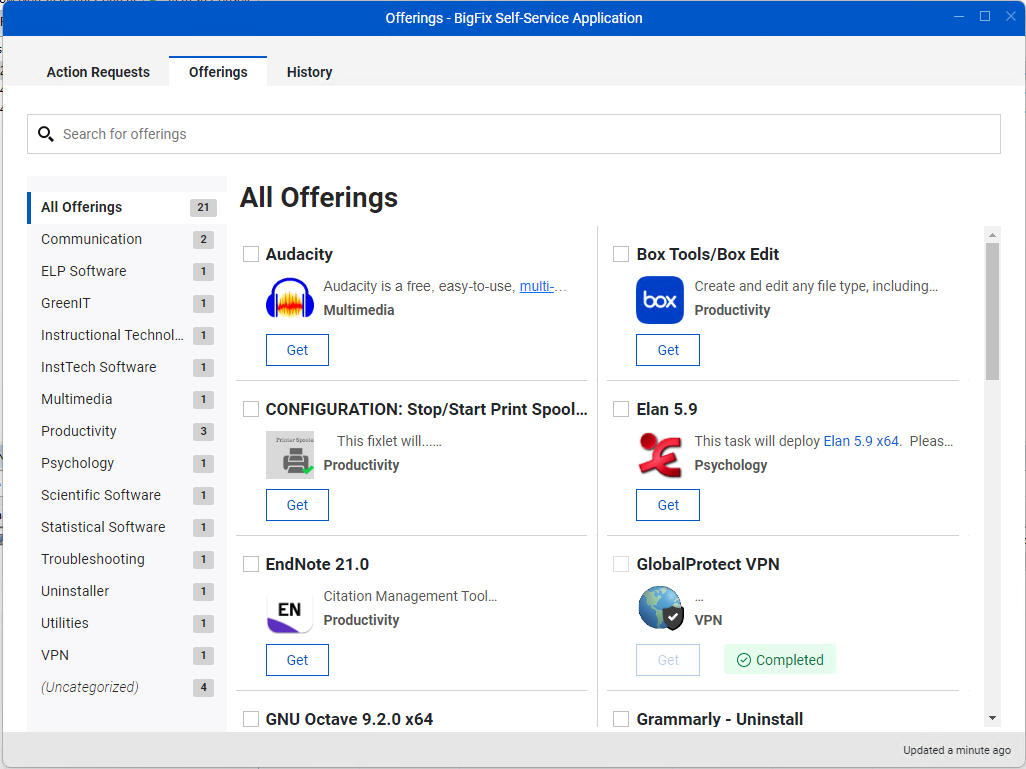
- Several offerings will be available from the SSA, select "Windows 10 End-Of-Life Upgrade to Win11" and then click the get button to start the process.
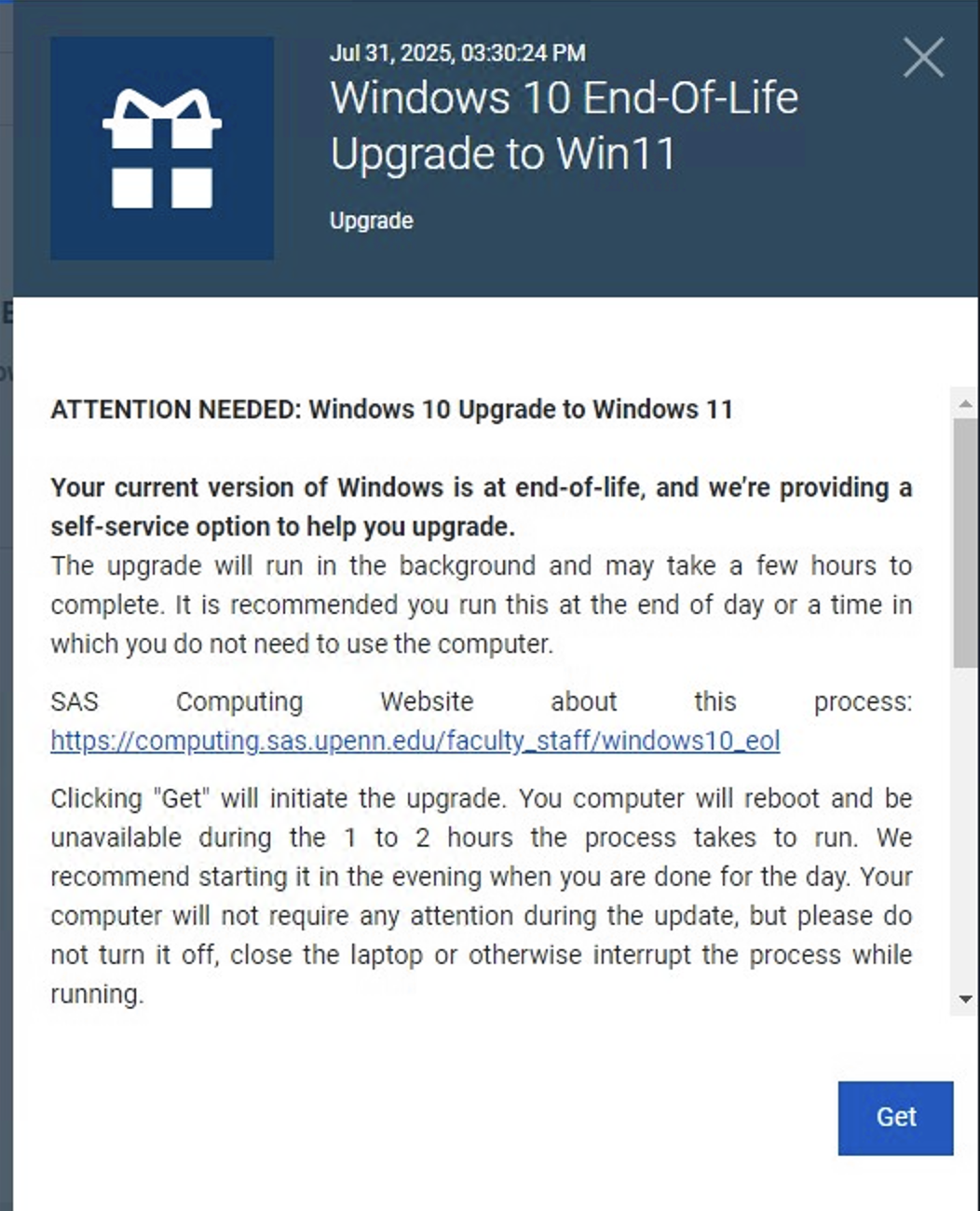
- The process will start shortly and ask you to restart the computer within 30-90 minutes. The computer will automatically restart if nothing happens 4 hours after this point. Please save all work and close out of all open programs before restarting.
Here’s what to expect during the process:
- Multiple Reboots
The system may reboot several times during the process. You may see a blue or black screen with messages like “Working on updates” or “Installing Windows 11.” This is normal - Upgrade Duration
The upgrade can take 30–90 minutes, depending on system speed. The computer may appear inactive—do not power it off during this time. - First Boot into Windows 11
After the final restart, you’ll see the Windows 11 login screen. The desktop and Start Menu will look different from Windows 10, with a new layout and centered taskbar icons.
After the Upgrade is done you may need 15 minutes to log in for the first time and sign back into some of your applications like Microsoft Office, Adobe, and Zoom. If anything doesn't seem to be working properly, please contact your LSP here - https://computing.sas.upenn.edu/support.
What should I do if my machine cannot upgrade to Windows 11?
The following models of machines cannot upgrade to Windows 11:
- Dell OptiPlex 9030 and below (9020, 9010)
- Dell OptiPlex 755
- Dell OptiPlex 990
If your machine cannot be upgraded to Windows 11, then we will need to look into replacing or retiring the machine. Please reach out to your LSP with any questions about this process at - https://computing.sas.upenn.edu/support.
What should I do if there are concerns about upgrading?
If you have questions about how Windows 11 will work with your computer or workflow, we understand. If there are particular pieces of software you need to make sure will work, special set-ups you have in place, or any general questions about taking care of this update, please reach out to your LSP at - https://computing.sas.upenn.edu/support.