

 ARTS & SCIENCES COMPUTING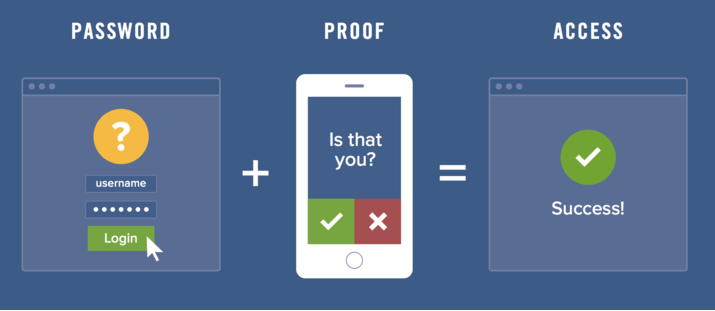
Two-Step Verification, or Multi-Factor Verification, is an additional layer of protection beyond the standard password login. It drastically reduces the risk of compromised data and accounts preventing unauthorized access even if a password is compromised. Passwords can be shared, however authenticator apps, such as Duo Mobile, can only be validated on the device in which they are registered.
We strongly recommend that you enroll in Duo Push when setting up your two-step verification. The user receives a popup message on their smartphone much like in the image above. They will then enter a 3-digit number on the login screen to continue.
Click here to set up Duo Push for the first time:
Click here to set up a new phone with Duo Push to replace another phone:
Note that you cannot use the previous Duo Mobile profile once you have set this up on your new phone.
You can manage your two-step verification settings using the Duo Device Managment portal:
Click here to head to the Duo Device Management portal: https://www.upenn.edu/manage-twostep
Two-Step Verification for PennO365:
Two-Step Verification is required for all SAS Faculty and Staff and is synced to your PennKey Two-Step Verification. It's convenient to use, and dramatically increases the security of your PennKey and PennO365 protected accounts.
For a user-friendly introduction to Two-Step Verification see: https://isc.upenn.edu/pennkey/twostep
Two-Step Verification for Google@SAS:
Two-step Verification is required for Google@SAS user accounts. You can sign in and enroll in Google's Two-Step Verification here.
If you have additional questions, please contact your Local Support Provider (LSP).