 ARTS & SCIENCES COMPUTING
On July 31, 2025, ESRI, the vendor for ArcGIS, changed its licensing model. ArcGIS ran in a concurrent user mode prior to this date. This allowed anyone to use ArcGIS on a lab computer without needing to sign in to ArcGIS with an ESRI account. The licenses for ArcGIS came from an SAS server which held the license file. Now, anyone using ArcGIS, whether it is in a computer lab or on some other SAS computer, must sign in with an ESRI account.
This is different from a PennKey. Penn's Office of Software Licensing (OSL) has a university license for ArcGIS, which can be used by qualifying faculty and students. Both OSL and SAS can provision ESRI accounts for those wishing to use ArcGIS in their classes.
Contact mms-help@sas.upenn.edu or license@upenn.edu to request an ESRI account.
Logging into ArcGIS in SAS Computer Labs
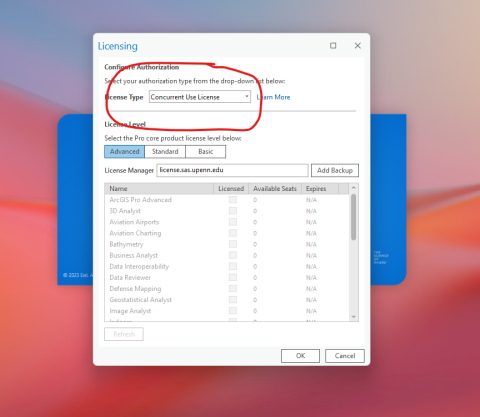
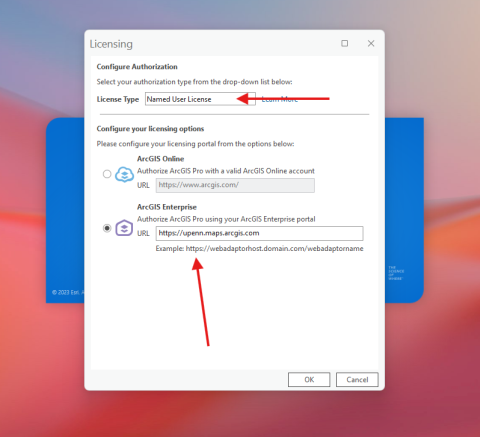
After logging into a lab computer with a PennKey and password, then opening ArcGIS from the desktop shortcut, ArcGIS will look for a concurrent license on the licensing server. A new license will not be found and ArcGIS will stop looking. From the drop-down menu at the top of the licensing windows, choose “Named User License." Enter the URL "https://upenn.maps.arcgis.com" (Be sure to include the https portion) in the ArcGIS Enterprise licensing option.
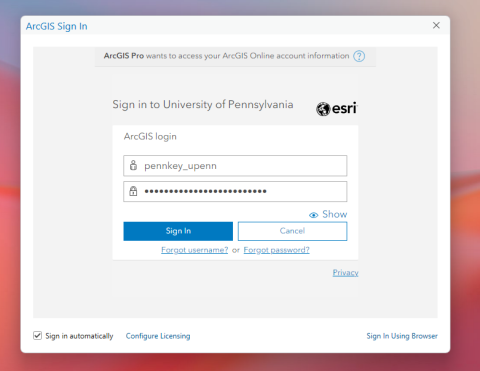
The ArcGIS login for Penn will be transmitted to each user when their account is created. The username/login name will most likely take the format of "pennkey_upenn."
Try that along with the password created for that account, which is not the same as a PennKey password.