

 ARTS & SCIENCES COMPUTING
How to Allow Non-Members to Send to a PennNet Mailing List
To allow external senders (who are not members or owners) to send messages to a PennNet Mailing list, follow the steps below.
-
Go to https://lists.upenn.edu
Log in using Single Sign-On (PennWebLogin).
-
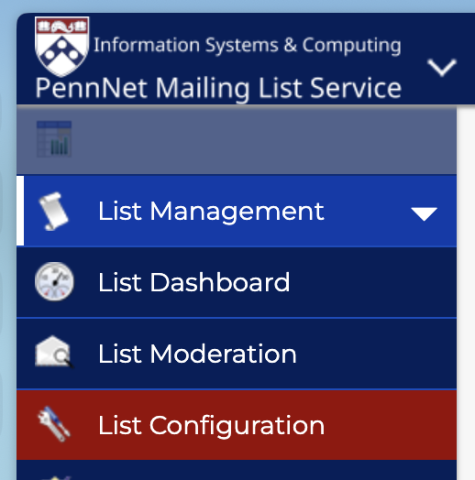
Navigate to List Management > List Configuration.
- Use the Select List drop-down menu to choose the list you would like to manage.
-
Click the Subscriptions button.

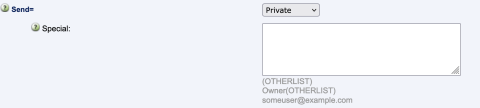
- Scroll down to the Send section and locate the Special field.
-
In the Special field, enter the email addresses of non-member, non-owner senders you wish to allow.
- To allow another PennNet Mailing list to send: enter (OTHERLIST)
- To allow the owners of another list to send: enter Owner(OTHERLIST)
- Click Update to save your changes.
To remove a non-member sender, delete their address from the Special field and click Update to save your changes.