

 ARTS & SCIENCES COMPUTING
How to Add a Single Subscriber to a PennNet Mailing List
Follow these steps to add one subscriber at a time to your PennNet Mailing List.
-
Go to https://lists.upenn.edu
Log in using Single Sign-On (PennWebLogin).
- After logging in, you will see the List Management page, which is your list dashboard.
- On the left side, click Subscription Management.
- At the top, use the dropdown menu to select the list you want to manage. Alternatively, use the filter box to search for your list.
-
You will see the Add Subscriber text field.
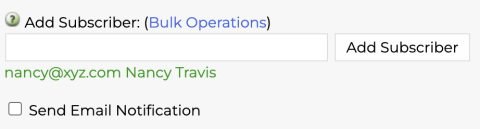
- Enter the subscriber's email address and, optionally, their name.
- Choose whether to notify the subscriber by checking the notification option.
- Click the Add Subscriber button.
- A confirmation message in blue text will appear indicating if the subscriber was successfully added and whether they were notified.
Alternate Method
-
Go to https://lists-tst.isc.upenn.edu
Log in using Single Sign-On (PennWebLogin). -
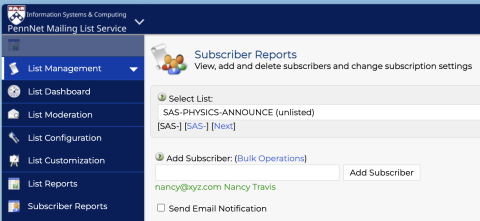
Select your list, then click Subscriber Reports.
-
Click the Add Subscriber button.
- Enter the subscriber's email address.
- Check the box if you want to send an email notification to the subscriber.
- Click Update.
To remove subscribers, go to Subscriber Reports, check the box next to the user you would like to remove, and select Delete Subscribers in the bottom left.
How to Add Multiple Subscribers to a PennNet Mailing List (Bulk Upload)
Follow these steps to upload multiple subscribers at once using a text file.
-
Go to https://lists.upenn.edu
Log in using Single Sign-On (PennWebLogin). - After logging in, you'll land on the List Management page.
-
On the left sidebar, click Subscriber Reports.
- At the top of the page, use the dropdown menu to select the list you want to manage. You can also use the filter box to search for your list.
-
In the Add Subscriber field, select the link titled Bulk Operations.
-
On the next screen, you'll be prompted to upload a text file (.txt) containing the email addresses (and optional names) of the subscribers you want to add.
- Each subscriber should be on a separate line.
- Format: email@domain.com or Full Name <email@domain.com>
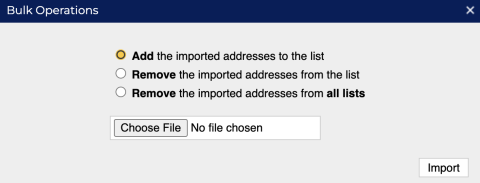
- Choose whether to send a notification email to the subscribers.
- Click Import to complete the upload.
- A confirmation message will appear indicating which addresses were successfully added and if any errors occurred.